How to change one facial feature on an AI avatar without changing the face
Updated 30 October 2026 · 6 min read
You ask the AI for a slightly smaller nose and get back a different person: new eyes, new skin, new jawline. If you use the same AI actor across ads or posts, that breaks everything. Here is why it happens and a method that keeps the rest of the face the same — based on our own side-by-side tests.
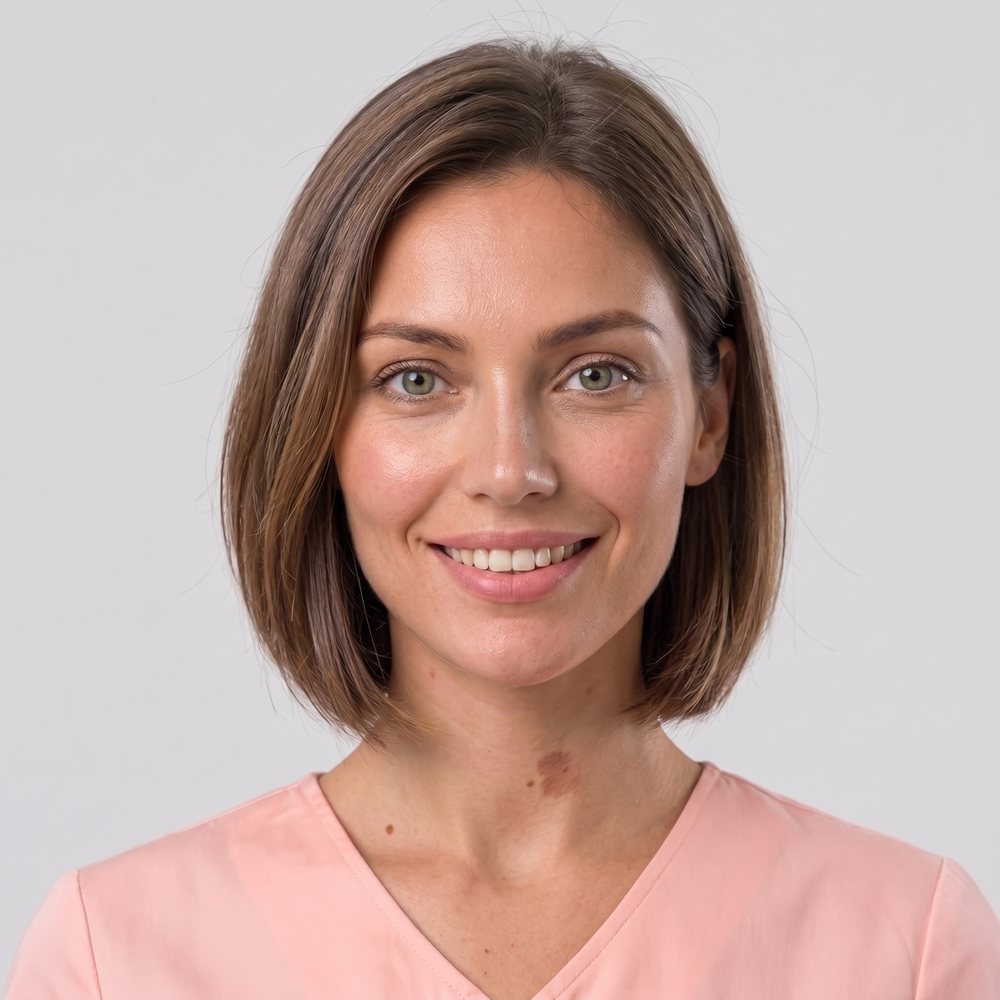
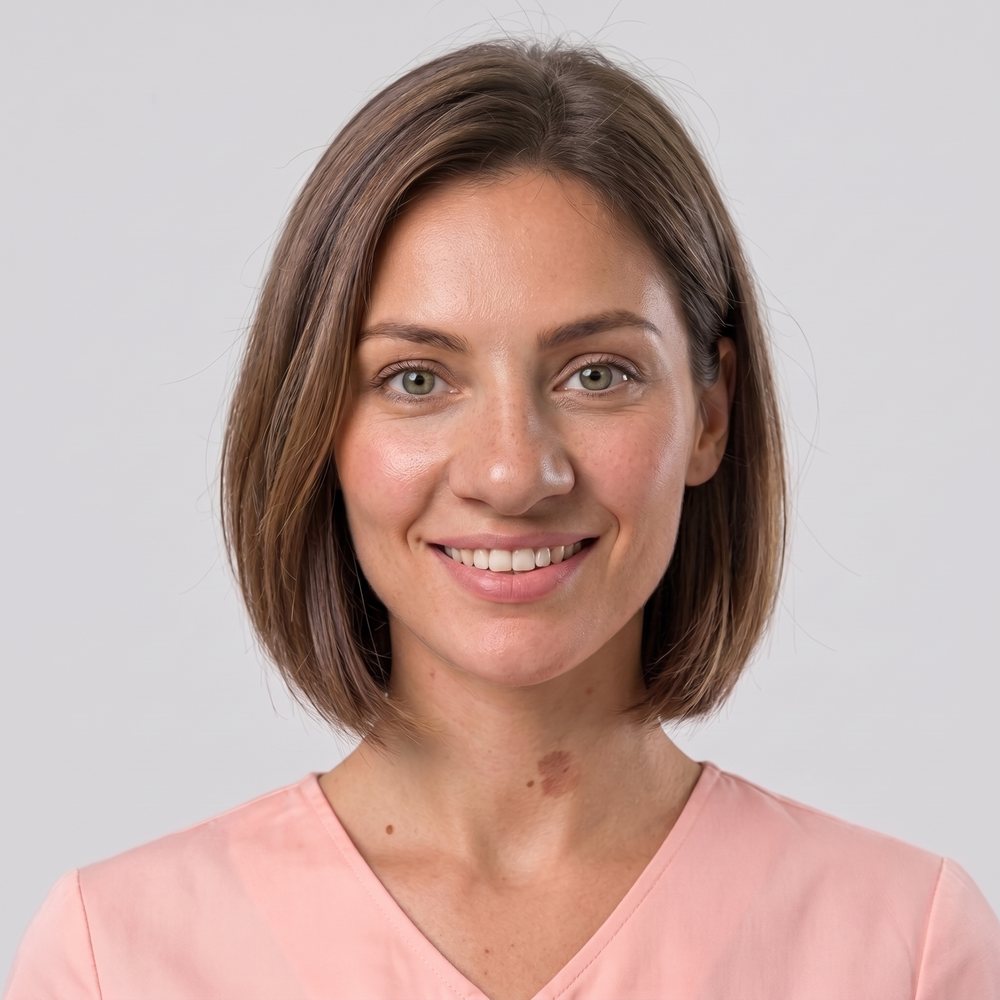
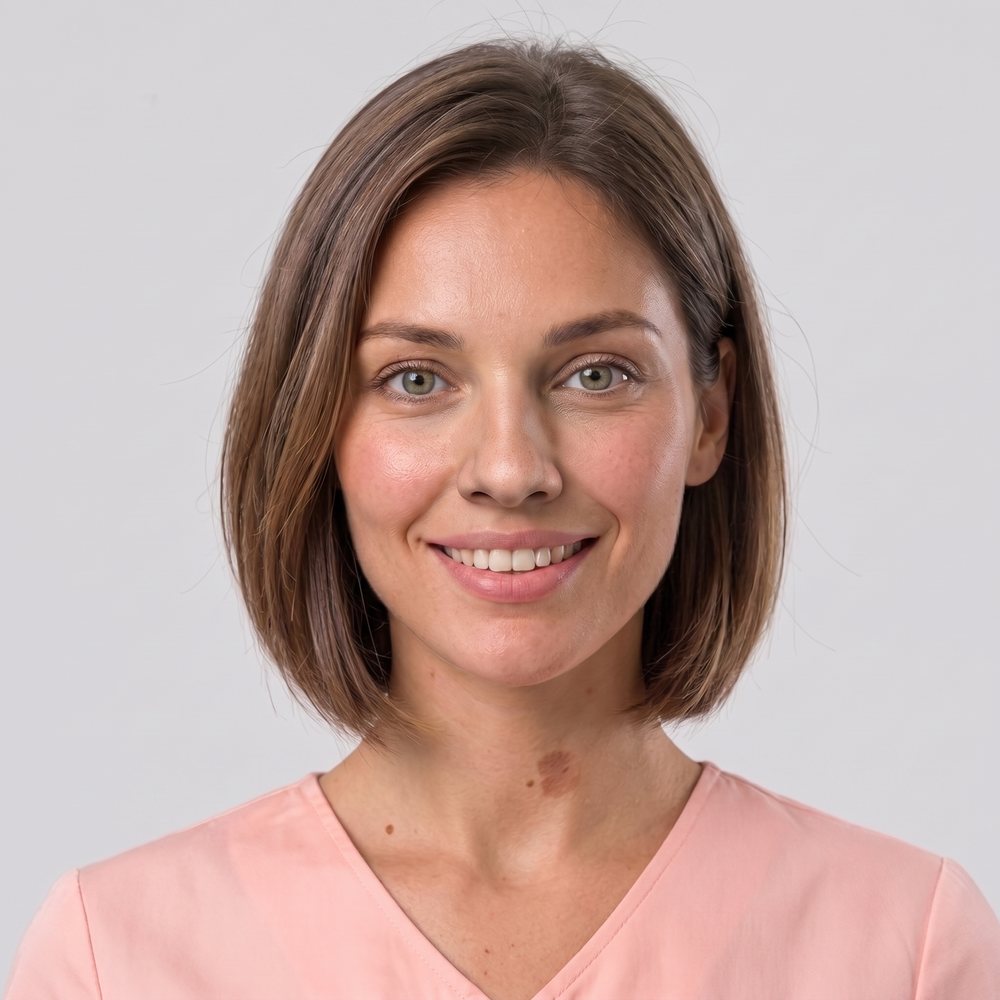
Why the AI redraws the whole face
Image generators don't "edit a nose" the way a photo editor does. They redraw the picture from your instructions. When the instruction is only words — "make the nose smaller" — the model has to guess two things: what shape you want and where the change should stop. When it guesses wide, neighbouring features, skin texture and lighting get redrawn too.
Two things make it worse:
- Long prompts. In our tests, very long prompts (thousands of characters) diluted the "keep everything else" instruction and the generator started changing the person. Prompts of a few hundred characters held identity much better.
- Several changes at once. Each extra change gives the model another reason to redraw more of the face.
The method: 6 steps
- Start from a clean source image. Front-facing, evenly lit, neutral expression, the feature fully visible. The cleaner the start, the less the model has to invent.
- Change one feature per edit. Nose now, lips in the next edit — never both in the same request.
- Show the target shape on the image. Draw the outline of the shape you want directly over the feature, in a colour that doesn't occur in skin. In our tests a blue outline worked in both directions (bigger and smaller); a skin-coloured overlay gave inconsistent results and failed when making a feature smaller, because the model couldn't tell where the new shape ended and the old one began.
- Add one sentence describing the shape. A small outline on its own often produced no change at all. The outline plus one sentence about the shape's character ("a straight, narrow bridge with a softly rounded tip") produced clearly different, controlled results.
- Keep the prompt short and explicit about what must not change. For example:
Change only the nose to match the blue reference outline: a straight, narrow bridge with a softly rounded tip. Remove the blue outline. Keep the same person: identical eyes, lips, skin texture, hair, lighting and background. Do not re-render the rest of the image.
- Pick the right generator and allow 2–3 tries. In our tests Google Flow with the agent turned on followed the reference shape far more closely than Nano Banana Pro on its own (details in the nose test). Asymmetric shapes (a deviated nose, uneven lips) usually needed 2–3 generations, because models are trained mostly on symmetric faces.
Chaining edits without drifting
To change several features, chain them: edit the nose, keep the best result, then use that image as the start for the lips, and so on. Always continue from the newest good image and keep a copy of the original — if a step drifts, go back one step instead of trying to fix the drift.
Doing it with ShapesShifter
ShapesShifter automates steps 3 to 5. You load your avatar, pick a feature, choose one of 112 reference shapes (nose, lips, eyes, eyebrows, bust, hips, silhouette), align it over the face, and export two things: your image with the blue reference drawn on it, and a short prompt that already contains the shape description. You paste both into your AI image generator. Your photo never leaves your browser.
Change one feature, keep the same person.
See how ShapesShifter worksFAQ
Why does the AI change the whole face when I ask for a smaller nose?
A text-only request doesn't say where the change should stop, so the model re-renders nearby features, skin and lighting too. Showing the exact target shape on the image and keeping the prompt short reduces this.
How much can one feature change in a single edit?
In our tests Nano Banana Pro alone applied a standard change of about 10–13% regardless of how much was asked. Google Flow with the agent turned on followed the reference: up to about 45% wider and about 40% narrower for a nose. Past roughly 70% wider it stopped following.
Can I change several features at once?
One at a time works more reliably. Keep the best result and start the next edit from it.
Does this work on photos of real people?
This guide is about AI-generated avatars. Only edit images you have the right to use, and never use edited images to deceive anyone.